

A Shopify range slider option lets a customer pick a number by dragging a slider — a length, a quantity, a size — between limits you set. It's the simplest way to sell by length or per unit, because the price can scale with the value chosen. This guide explains what the Range slider type is and how to set up min, max, step and per-unit pricing in Optionify, a free product options app.
What is a range slider option in Shopify?
A range slider gives the customer a draggable control to choose one number within a range you define. You set three things — a minimum, a maximum, and a step (the increment the slider moves in) — and you can attach a per-unit price so the add-on charge grows with the value selected. Shopify has no native equivalent; variants are fixed, pre-built values, not a live scale.
 A range slider letting a customer choose a length, with the price scaling to match
When should I use a range slider?
Reach for a range slider whenever the customer is choosing a number on a continuous scale and, often, the price depends on it — fabric, rope, cable or timber sold by the meter; custom quantities within a supported range; or any single measurement where a slider is friendlier than a typed field.
If price depends on width × height (an area) rather than a single number, use the Dimension type instead. If you'd rather have a typed box than a slider, use a Number input — same concept, different control.
How to set up a range slider in Optionify
- Click Create option set and name the set (e.g. "Fabric length").
- Add an option and choose the Range slider type.
- Enter the option label, such as "Choose your length" or "How many meters?"
- Set the minimum and maximum values — the range the slider can move between.
- Set the step — the increment the slider jumps in (e.g.
0.5for half-meter steps). - Attach a per-unit price so the charge scales with the chosen value (details below).
- Assign the set with the right assignment method — All Products, Tagged Products, Collections, or Individual Products.
- Set the set to Active and save with Shopify's save bar.
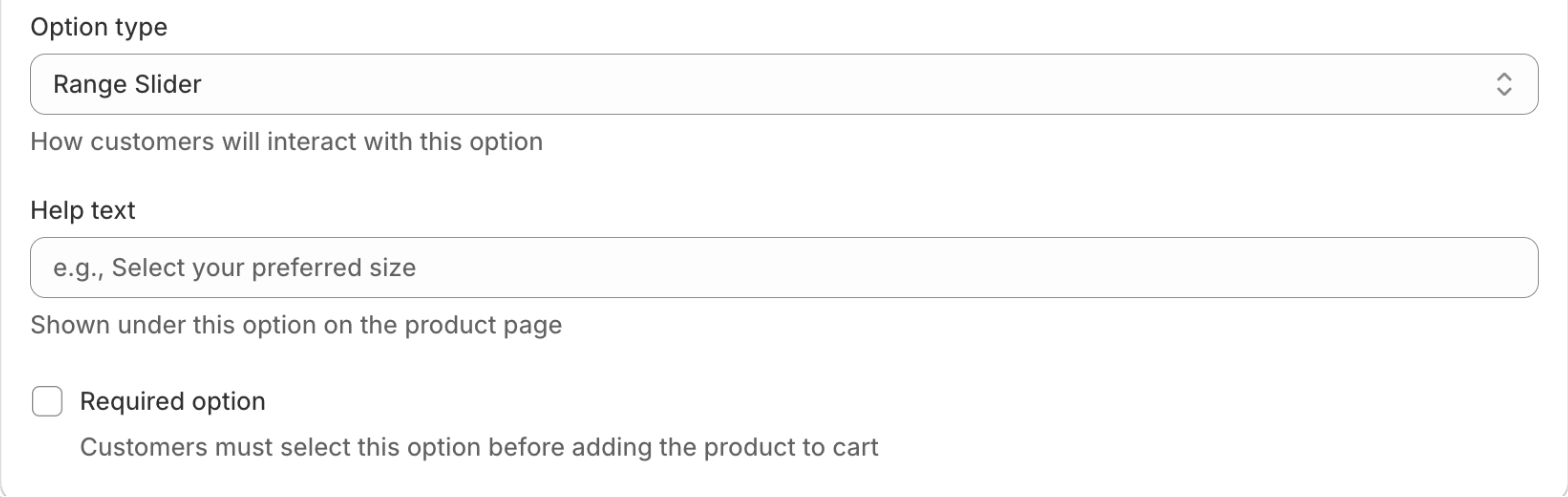 Setting minimum, maximum, step and per-unit price in the Option Set Editor
Options only appear on the storefront once the theme app embed is enabled in your theme editor. If the slider doesn't show after saving, that's usually why — the troubleshooting guide fixes it in one step.
How do min, max and step work?
These three settings control exactly what the customer can pick:
- Minimum — the smallest value the slider allows. Set it to the shortest length you'll supply.
- Maximum — the largest value. Set it to the longest length you can cut or ship.
- Step — the increment. A step of
0.5moves the slider in half-unit jumps (0.5, 1.0, 1.5…), which stops awkward values and keeps pricing predictable.
Together they keep customers inside a range you can fulfill, so you never receive an order for a size you can't make.
A worked per-unit pricing example
Say you sell upholstery fabric at $12 per meter. In the Optionify editor you set the Range slider like this:
Min 1 m Max 20 m Step 0.5 m Price $12 per meter
On the storefront the customer drags the slider to 4.5 m, and the option adds:
4.5 m × $12 = $54.00
The +$54.00 updates live as they drag. Move to 6 m and it becomes $72.00 — automatically, with no variant and no lookup table. You set one per-meter rate; Optionify handles every length in the range.
The add-on charge reaches checkout through a hidden companion product, so it's collected correctly and works with Buy it Now and Shop Pay, not just the standard cart. See add-on pricing for how totals reach the order.
Real use cases for range sliders
Fabric and textiles by the meter. A drapery shop sets min 1 m, max 30 m, step 0.5 m at a per-meter rate, and customers buy exactly the length they need.
Cut-to-length materials. A hardware supplier sells rope, chain, cable or timber by the foot, with the slider capped at the maximum length they stock.
Custom quantities with limits. A print shop lets buyers slide between 50 and 5,000 units, with the per-unit price scaling the total.
Because the chosen value is saved as a line item property on the order, your production team sees the exact length or quantity to prepare — no follow-up emails. For products priced by two measurements, pair this with the Dimension type for area-based pricing.
FAQ
What is a range slider option in Shopify? A range slider lets a customer pick a number by dragging a slider. You set the minimum, maximum and step, and can attach a per-unit price so the charge scales with the value chosen — ideal for selling by length or quantity.
How do I sell fabric by the meter on Shopify? Add an Optionify Range slider, set your minimum and maximum length with a step like 0.5 m, and attach a per-meter price. The charge scales with the length chosen, and it works for any per-unit material.
How do min, max and step work? Minimum and maximum define the range the slider moves between so customers stay within lengths you can supply. Step sets the increment — 0.5 means half-unit jumps — which stops awkward values and keeps pricing predictable.
Does a range slider create Shopify variants? No. A range slider isn't a variant, so it never creates SKUs or counts against the 3-options-per-product limit. One slider replaces hundreds of pre-built length variants.
Does the chosen value show on the order? Yes. The selected number is saved as a line item property on the order, so your production team sees the exact length or quantity to supply.
Get started with Optionify
Ready to sell by length or quantity with live per-unit pricing? Install Optionify — it's free, forever, with all 17 option types, conditional logic, and per-unit pricing included.
Install Optionify on the Shopify App Store
New here? Start with creating your first product option, see the full made-to-measure guide for area-based pricing, or use a number input for a typed quantity instead of a slider.