

A Phone option adds a validated phone number field to your product page, so customers can leave a delivery contact, an SMS number, or an appointment callback line right at add-to-cart. If you searched for a Shopify phone number field on product pages, this guide explains why Shopify has no native option for it and how to add one in a few minutes with Optionify, a free product options app.
How do I add a phone number field to a Shopify product page?
Shopify's product options are limited to variants, which can't collect free-form input like a phone number. With Optionify, create an option set, add a Phone option, decide whether it is required, assign the set to your products, and enable the theme app embed. Customers then type a validated phone number before adding the item to their cart.
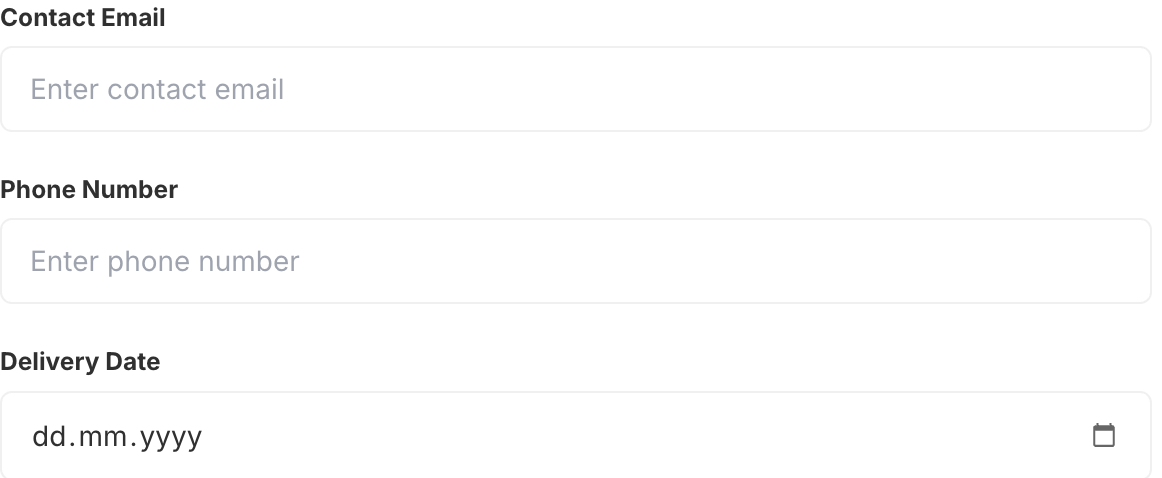 A validated Phone input on a live product page, collecting a delivery contact number
Why Shopify has no built-in phone field on products
Native Shopify variants represent fixed combinations — size, color, material — and every variant is a preset choice, not a typed value. There is simply no place in the variant system for a customer to enter their own phone number on a product page.
That leaves stores collecting phone numbers awkwardly in the cart note or waiting until checkout, where the number is tied to the order contact rather than to a specific product. The Optionify Phone input lives outside the variant system, so it doesn't create SKUs or count against Shopify's 3-options-per-product limit, and it captures the number against the exact line item it belongs to.
How to set up a phone field in Optionify
- Click Create option set and name the set (e.g. "Delivery contact").
- Add an option and choose the Phone type.
- Enter the option label, such as "Delivery phone number" or "Best number for SMS updates."
- Add help text if it clarifies why you need it, e.g. "We'll text you when your order ships."
- Decide whether the option is required — recommended for delivery and appointment products.
- Assign the set with the right assignment method — All Products, Tagged Products, Collections, or Individual Products.
- Set the set to Active and save with Shopify's save bar.
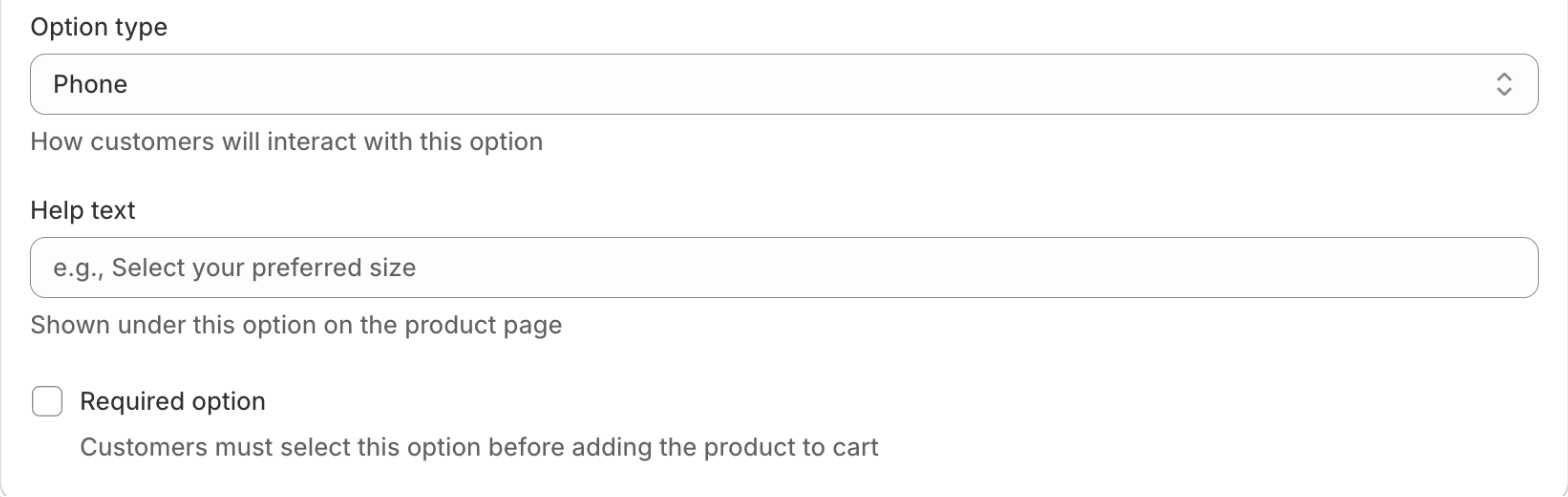 Configuring a Phone option with a label, help text, and the required setting in the Option Set Editor
Options only appear on the storefront once the theme app embed is enabled in your theme editor, so switch it on before testing.
Does the phone field validate the number?
Yes. The Phone input checks that the entry looks like a valid phone number before the customer can add to cart, which cuts down on typos and unreachable contacts. It confirms the format, not the line — it does not call or text the number to verify it is active, and it does not send a one-time code. For anything that needs a real inbox, pair it with an email field, which validates email addresses the same way.
Does Optionify send SMS messages?
No — and it's important to be clear about this. Optionify collects and stores the phone number; it does not send text messages. The number is saved on the order for you or your other apps to use. To actually send SMS updates you'll use a dedicated SMS marketing or notification app, your carrier, or manual outreach, reading the number straight from the order.
Think of Optionify as the capture layer: it gets you an accurate, validated number attached to the right product, and hands it off cleanly to whatever sends the message.
Real use cases for a product phone field
Delivery contact for local or same-day orders. A grocery or florist collects "Number for the driver" on each delivery product, so couriers can reach the customer at the door.
SMS shipping updates. A store adds an optional "Best number for text updates" field, then feeds the saved numbers into its SMS app for dispatch notifications.
Appointment and booking confirmation. A service or rental business captures a callback number on bookable products to confirm times by phone or text.
Made-to-order and consultation products. For a custom or made-to-measure item, a phone number lets your team quickly reach the customer with a fitting or design question.
Because the number is stored as a line item property on the order, it travels with the item through fulfillment — no separate spreadsheet, no lost contacts. If you also need a numeric quantity or measurement alongside it, add a number input to the same option set.
FAQ
How do I add a phone number field to a Shopify product page? Shopify has no built-in product-page phone field. With Optionify, create an option set, add a Phone option, set whether it is required, assign it to your products, and enable the theme app embed. Customers then enter a validated number at add-to-cart.
Does the phone field validate the number? Yes. The Phone input checks that the entry looks like a valid phone number before add-to-cart, reducing typos. It does not verify the line is active or send a confirmation code.
Does Optionify send SMS messages to the number? No. Optionify stores the number on the order as a line item property. It does not text. Use the saved number with your own SMS app or carrier for delivery and appointment updates.
Where does the phone number appear after checkout? It is saved as a line item property on the Shopify order, visible in the order details, and readable by any connected SMS or fulfillment app.
Can I make the phone number optional? Yes. A Phone option can be required or optional. Make it required for delivery and appointment products, and optional when the number is a convenience.
Get started with Optionify
Need to capture a delivery or SMS contact on your product pages? Install Optionify — it's free, forever, with all 17 option types, validation, and per-option settings included.
Install Optionify on the Shopify App Store
New here? Start with creating your first product option, then add an email field or a number input to round out your contact and detail fields.