
Text options are the most versatile and commonly used option type in Optionify. They allow customers to enter short, single-line text for personalization, customization, and special requests.
What Are Text Options?
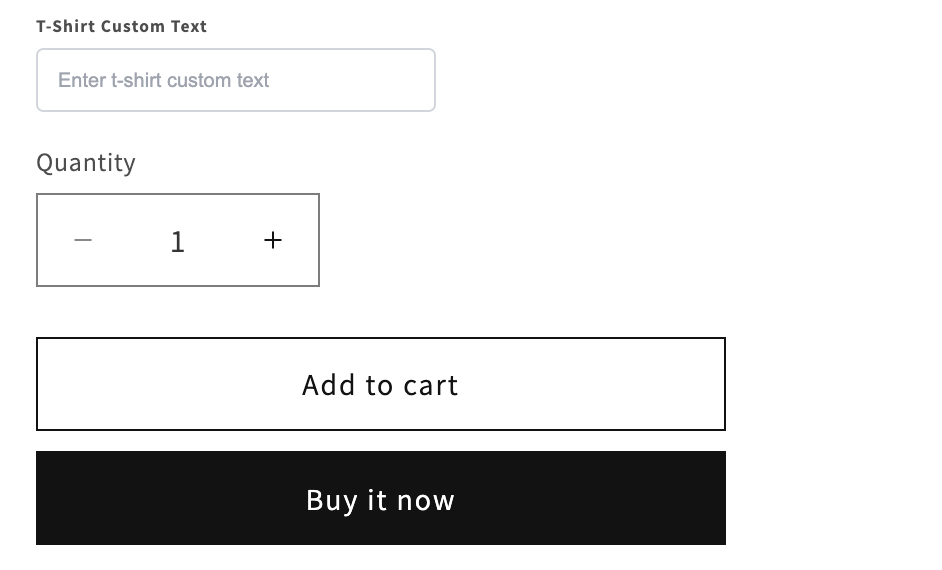
Text options create a single-line input field where customers can type text. Perfect for:
- Names and initials
- Short messages (up to ~200 characters)
- Product codes or references
- Custom identifiers
- Single-line instructions
!Text option example on product page A text option field for custom text on a product page
Real-World Use Cases
1. Personalization & Engraving
Jewelry Engraving
Label: "Engraving Text (max 20 characters)"
Example: "Love Always, Mom"
Monogramming
Label: "Enter Initials (3 letters)"
Example: "JKL"
2. Gift Messages
Gift Card Message
Label: "Gift Message (optional)"
Example: "Happy Birthday Sarah!"
3. Custom References
Order Reference
Label: "PO Number or Reference"
Example: "PO-2024-001"
Creating a Text Option
Step 1: Basic Setup
- Click Create New Option
- Select Text option type
- Enter option details:
Option Label: "Engraving Text"
Internal Name: "engraving-text"
Help Text: "Enter text for engraving (max 20 characters)"
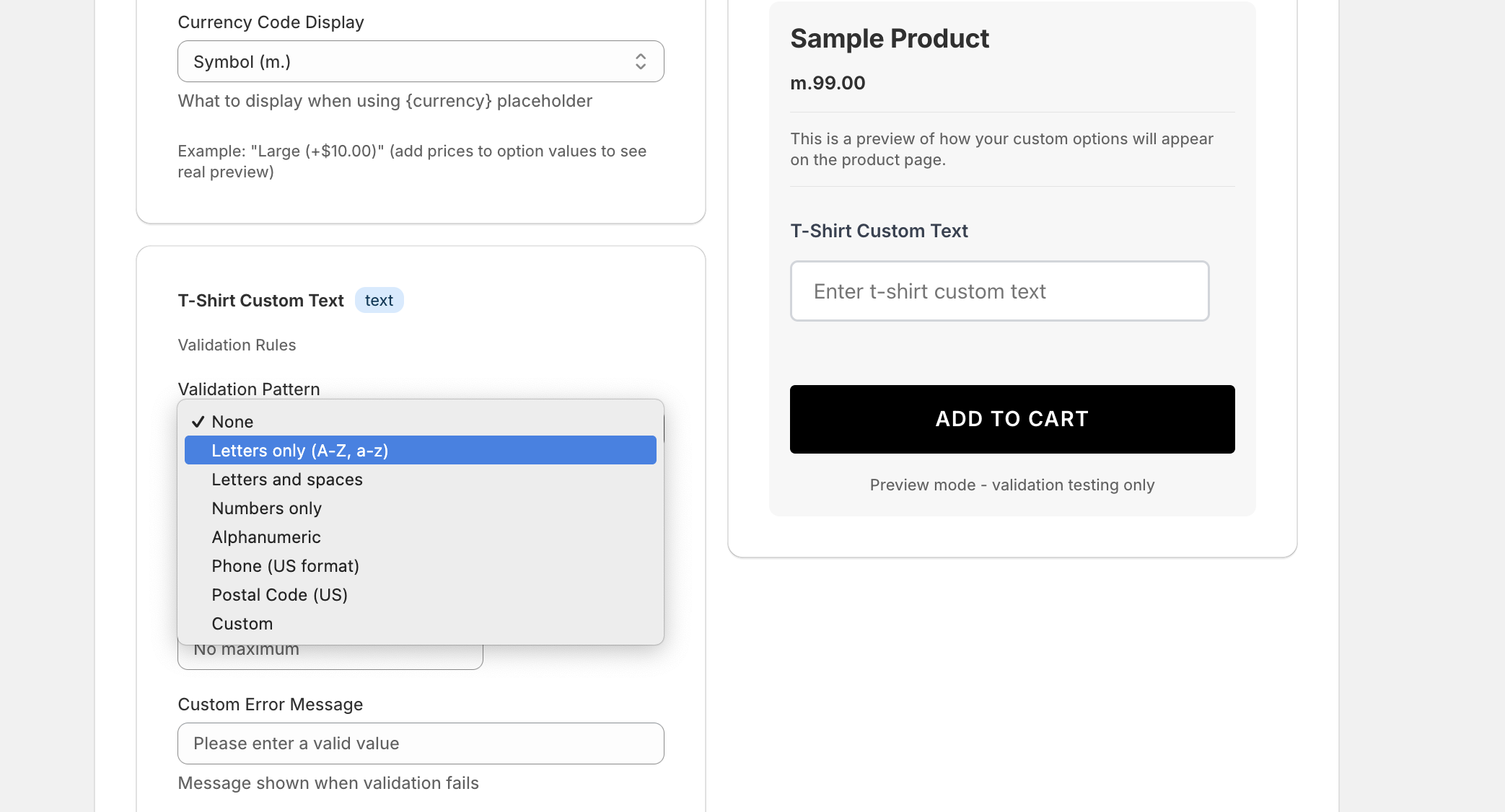
!Text option validation patterns Choose from multiple validation patterns to control input
Step 2: Configure Text Settings
Character Limit
Always set a character limit to prevent issues:
Enable Character Limit: Yes
Maximum Characters: 20
Show Counter: Yes
Recommended limits by use case:
- Engraving: 15-30 characters
- Initials: 1-5 characters
- Gift messages: 100-150 characters
- Names: 30-50 characters
Placeholder Text
Show customers what format you expect:
Placeholder: "e.g., John & Sarah 2024"
Good placeholder examples:
- ✅ "e.g., Happy Birthday!"
- ✅ "Enter your initials (ABC)"
- ✅ "Your name here"
- ❌ "Text"
- ❌ "Enter text here"
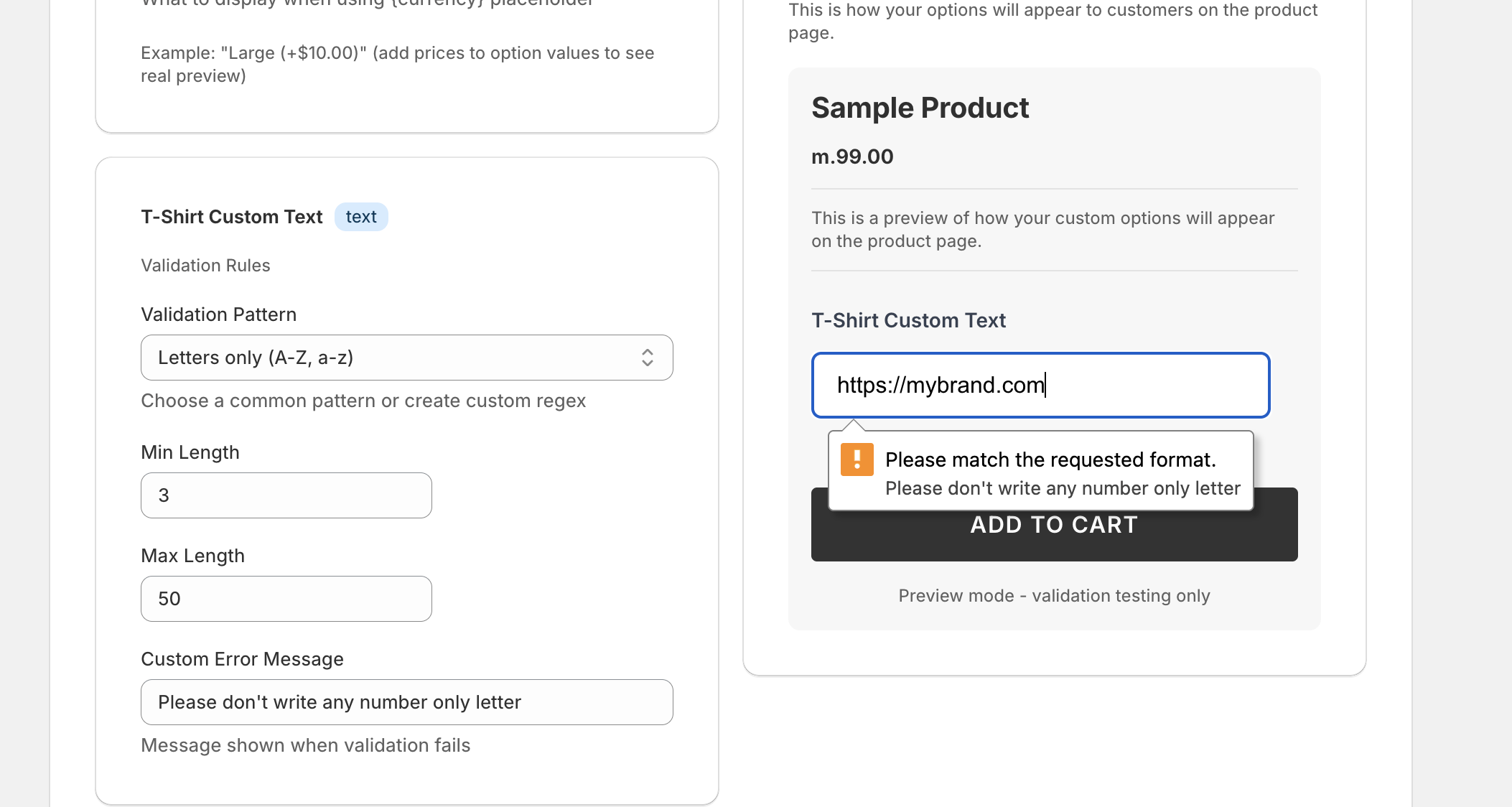
!Validation settings with custom error messages Configure validation rules, min/max length, and custom error messages
Step 3: Validation Rules
Required vs Optional
Make it required when:
- The product NEEDS this information
- You can't fulfill without it
- It's critical to the order
Make it optional when:
- It's a nice-to-have
- You can proceed without it
- Not all customers need it
Required: No (for optional features)
Required: Yes (for critical personalization)
Input Validation
Character Type Restrictions:
Allow All Characters: Default
Letters Only: For names, initials
Numbers Only: For quantities, codes
Alphanumeric: For mixed inputs
Pattern Matching (Advanced):
Pattern: [A-Z]{3}
Use Case: Three uppercase letters for initials
Step 4: Assignment & Pricing
Assign to relevant products:
Assignment: Tagged Products
Tags: "engravable", "personalizable"
Add pricing if applicable:
Add Price: Yes
Price: $10.00
Price Label: "Engraving Service"
!Text option with pricing Add charges for premium personalization services

Advanced Text Option Features
Input Transformation
Automatic Capitalization:
Transform: UPPERCASE
Input: "hello world"
Stored As: "HELLO WORLD"
Use cases:
UPPERCASE: Initials, codeslowercase: Email addresses, usernamesCapitalize Each Word: Names, titles
Prefix & Suffix
Add automatic text before or after customer input:
Prefix: "Engraved: "
Customer enters: "Mom"
Displays as: "Engraved: Mom"
Default Values
Pre-fill common choices:
Default Value: "Gift"
Customers can change it, but it saves time for common inputs.
Best Practices
1. Clear Labeling
Good labels:
- ✅ "Engraving Text (max 20 characters)"
- ✅ "Your Name for Certificate"
- ✅ "Gift Message (optional)"
Poor labels:
- ❌ "Text 1"
- ❌ "Enter here"
- ❌ "Custom"
2. Helpful Help Text
Explain what customers should enter:
Help Text: "Enter the exact text you want engraved.
Check spelling carefully - we engrave exactly as typed."
3. Character Limits
Set realistic limits:
Jewelry engraving: 15-25 characters
Shirt text: 30-50 characters
Gift messages: 100-200 characters
4. Examples in Placeholders
Show, don't just tell:
❌ Placeholder: "Enter text"
✅ Placeholder: "e.g., Sarah & John Est. 2024"
5. Validation Messages
Customize error messages:
Error (too long): "Engraving text must be 20 characters or less"
Error (empty): "Please enter text for engraving"
Common Mistakes to Avoid
❌ No Character Limit
Problem: Customer enters 500 characters Solution: Always set maximum length
❌ Unclear Purpose
Problem: Label says "Text Option" Solution: Be specific: "Engraving Text"
❌ No Examples
Problem: Customers don't know what format to use Solution: Add placeholder examples
❌ Too Restrictive
Problem: Blocks common characters like apostrophes Solution: Allow all characters unless necessary
❌ Wrong Option Type
Problem: Using text for long messages Solution: Use Textarea for multi-line input
Styling & Display
Input Field Width
Text fields can be sized:
Width: Full (100%)
Width: Half (50%)
Width: Small (30%)
Sizing guidelines:
- Initials (3 chars): Small width
- Names: Medium width
- Messages: Full width
!Different text field widths Match field width to expected input length

Character Counter
Show remaining characters:
Show Counter: Yes
Position: Below field
Format: "15 characters remaining"
Live Preview
Some themes support live preview:
Enable Preview: Yes
Preview Format: "Engraved: {input}"
Integration with Orders
How Text Appears in Orders
In Shopify order details:
Product: Gold Ring
Options:
  - Engraving Text: "Love Always"
  - Font Style: Script
Exporting Data
Text option data exports to:
- Order CSV exports
- Third-party apps
- Fulfillment systems
Make sure your fulfillment team knows where to find this data!
Troubleshooting
Customer Can't Type Special Characters
Cause: Too restrictive validation Fix: Change to "Allow All Characters"
Character Counter Doesn't Update
Cause: Theme incompatibility Fix: Disable and re-enable in settings, or contact support
Text Not Appearing in Orders
Cause: Customer added to cart before entering text Fix: Add validation to require text before "Add to Cart"
Text Gets Cut Off
Cause: Character limit too high for product Fix: Reduce limit to what actually fits
Examples by Industry
Jewelry Store
Option: "Engraving Text"
Limit: 20 characters
Required: Yes
Price: $15.00
Assignment: Tagged "engravable"
Apparel Store
Option: "Custom Team Name"
Limit: 30 characters
Required: No
Transform: UPPERCASE
Assignment: Collection "Custom Jerseys"
Gift Shop
Option: "Gift Card Message"
Limit: 100 characters
Required: No
Placeholder: "e.g., Happy Birthday!"
Assignment: All Products
Print Shop
Option: "Custom Text Line 1"
Limit: 40 characters
Required: Yes
Assignment: Tagged "customizable"
Related Option Types
- Textarea Options: For longer, multi-line text → Learn more
- Email Options: For validated email addresses → Learn more
- Number Options: For numeric input only → Learn more
Next Steps
Now that you understand text options:
- Try Textarea Options for longer messages
- Learn Conditional Logic to show text fields conditionally
- Explore Radio Options for predefined text choices
Get Started with Optionify
Ready to add powerful text input options to your Shopify store? Install Optionify today from the Shopify App Store and start offering customizable text fields in minutes.
Install Optionify on Shopify App Store
With Optionify's text input options, you can:
- Collect personalized text from customers
- Validate inputs with built-in patterns
- Set custom error messages
- Control text length and format
- Seamlessly integrate with your store theme
Join thousands of Shopify merchants who trust Optionify for product customization.
Need help? Check our Troubleshooting Guide or contact support.