
Date picker options provide an intuitive calendar interface for customers to select dates. Perfect for scheduling deliveries, planning events, and managing time-sensitive customizations.
What Are Date Picker Options?
Date picker options create a calendar input field where customers can select specific dates. The date picker provides a user-friendly interface that prevents invalid date entries and allows you to control which dates are available for selection.
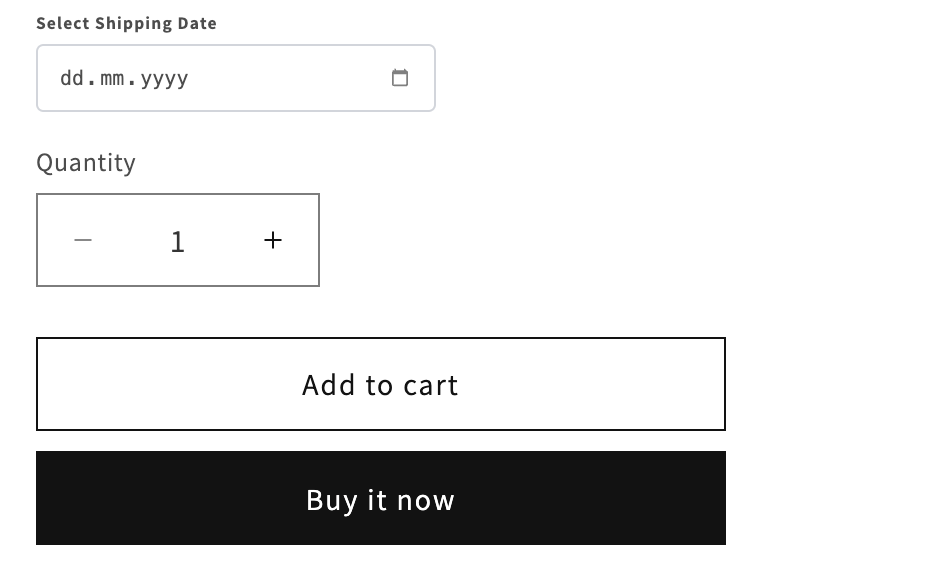 A date picker field for selecting shipping dates on a product page
Real-World Use Cases
1. Delivery & Shipping
Preferred Delivery Date
Label: "Select Shipping Date"
Min Days: 3 (processing time)
Max Days: 90 (planning window)
Blocked: Sundays (no delivery)
Rush Order Pickup
Label: "Pick Up Date"
Min Days: 1 (next day pickup)
Blocked: Weekends
2. Event Planning
Custom Event Items
Label: "Event Date"
Use Case: Wedding favors, party supplies
Min Days: 14 (production time)
Personalized Gifts
Label: "Birthday Date"
Use Case: Track when gift should arrive
3. Reservations
Product Rentals
Label: "Rental Start Date"
Min Days: 2
Max Days: 365
4. Perishable Goods
Fresh Flowers
Label: "Delivery Date"
Min Days: 1
Blocked: Sundays, Mondays (shop closed)
Creating a Date Picker Option
Step 1: Basic Setup
- Click Create New Option
- Select Date option type
- Enter option details:
Option Label: "Pick Up Date"
Internal Name: "pickup-date"
Help Text: "Select your preferred pickup date (available 3 days from today)"
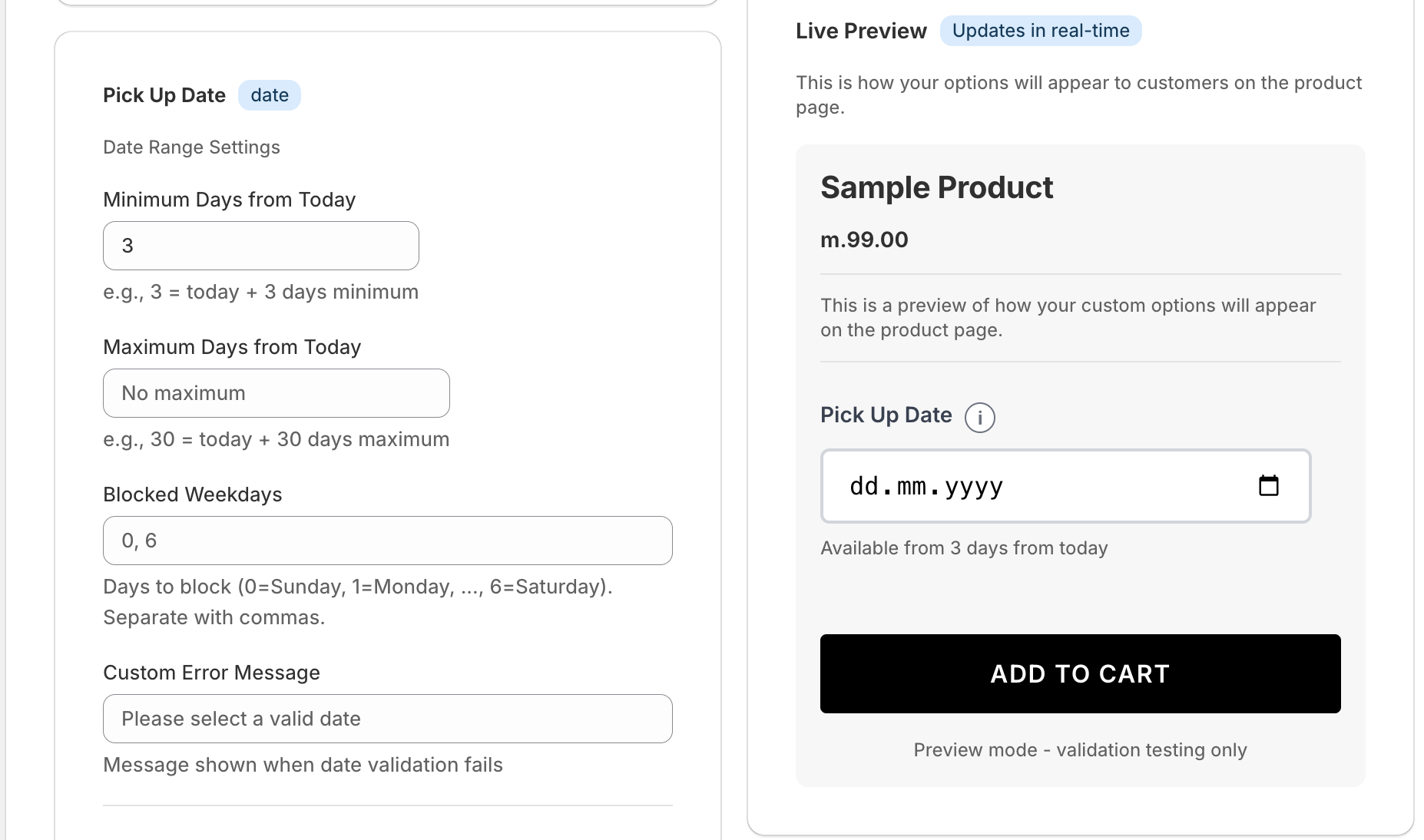 Configure date range settings, blocked days, and custom error messages
Step 2: Configure Date Range Settings
Minimum Days from Today
Control how soon customers can select dates:
Minimum Days: 3
Result: Today + 3 days minimum
Example: If today is Jan 1, earliest date is Jan 4
Common scenarios:
- Same day service: 0 days
- Next day: 1 day
- Standard processing: 3-5 days
- Custom production: 7-14 days
- Pre-orders: 30+ days
Maximum Days from Today
Limit how far ahead customers can book:
Maximum Days: 90
Result: Today + 90 days maximum
Example: If today is Jan 1, latest date is Apr 1
When to set limits:
- Inventory planning: 60-90 days
- Event bookings: 365 days (1 year)
- Seasonal products: Match season
- No limit: Leave empty for "No maximum"
Important: Setting appropriate date ranges helps with:
- Inventory management
- Production scheduling
- Preventing unrealistic expectations
- Managing seasonal availability
Step 3: Block Unavailable Days
Blocked Weekdays
Prevent selection of specific days of the week:
Blocked Weekdays: 0, 6
Format: 0=Sunday, 1=Monday, ..., 6=Saturday
Example: "0, 6" blocks Sundays and Saturdays
Common patterns:
- Block weekends:
0, 6 - Block Sundays only:
0 - Block Mondays and Wednesdays:
1, 3 - Business days only:
0, 6(block weekends)
Use cases:
- Match delivery schedules
- Respect shop hours
- Account for shipping carrier schedules
- Align with production days
Step 4: Validation & Error Messages
Custom Error Messages
Provide clear feedback when customers select invalid dates:
Custom Error Message: "Please select a valid date"
Better examples:
- ✅ "Please select a date at least 3 days from today"
- ✅ "Sorry, we don't deliver on weekends. Please choose a weekday"
- ✅ "Pickup dates must be within the next 90 days"
- ❌ "Invalid date"
- ❌ "Error"
The error message appears when:
- Date is too soon (before minimum)
- Date is too far (after maximum)
- Date falls on blocked weekday
- Customer tries to proceed without selecting a date (if required)
Step 5: Required vs Optional
Make it required when:
- Date is critical for fulfillment
- You need to plan production/delivery
- The product is time-sensitive
Make it optional when:
- Date is just a preference
- Flexible fulfillment timing
- Customer may not know exact date
Required: Yes (for critical scheduling)
Required: No (for flexible preferences)
Advanced Features
Date Format Display
Dates display in customer's local format:
- US: MM/DD/YYYY
- Europe: DD/MM/YYYY
- ISO: YYYY-MM-DD
Optionify automatically handles localization based on customer location.
Calendar Interface
The date picker provides:
- Visual calendar view
- Month/year navigation
- Disabled date indicators
- Today highlight
- Clear visual feedback
Mobile Optimization
On mobile devices:
- Native date picker integration
- Touch-friendly calendar
- Optimized for small screens
- Accessible keyboard input
Best Practices
1. Clear Labels
Good labels:
- ✅ "Preferred Delivery Date"
- ✅ "Event Date for Your Custom Order"
- ✅ "Pick Up Date (available 3+ days out)"
Poor labels:
- ❌ "Date"
- ❌ "Select Date"
- ❌ "Date Option 1"
2. Helpful Help Text
Explain what the date means:
Help Text: "Select your preferred delivery date.
Orders require 3 business days processing.
We don't deliver on weekends."
3. Realistic Minimums
Set minimums that account for:
- Production time
- Shipping time
- Processing time
- Buffer for issues
Example: If you need 2 days to make a product and 1 day to ship, set minimum to 3-4 days for safety.
4. Communicate Blocked Days
Tell customers why days are blocked:
Help Text: "We don't deliver on Sundays or Mondays.
Please select Tuesday-Saturday."
5. Plan for Holidays
Consider blocking major holidays:
- Add to help text: "Holiday shipping may be delayed"
- Use maximum date to avoid holiday rush
- Communicate processing times clearly
Common Mistakes to Avoid
❌ Minimum Too Short
Problem: Customer selects tomorrow, but you need 5 days Solution: Set minimum days accurately
❌ No Maximum Set
Problem: Customer books 2 years ahead Solution: Set realistic maximum based on planning horizon
❌ Unclear Blocked Days
Problem: Customer doesn't know why certain days are disabled Solution: Explain in help text and error messages
❌ No Buffer Time
Problem: Minimum is exactly production time with no margin Solution: Add 1-2 day buffer for unexpected issues
❌ Wrong Option Type
Problem: Need date AND time Solution: Consider adding a separate time picker or text field
Integration with Orders
How Dates Appear in Orders
In Shopify order details:
Product: Custom Cake
Options:
  - Pick Up Date: 2024-02-15
  - Flavor: Chocolate
Date Format in Orders
Dates are stored in ISO format (YYYY-MM-DD) for consistency and easy processing:
- Easy to parse and sort
- No timezone issues
- Compatible with all systems
Exporting Data
Date picker data exports to:
- Shopify order CSV
- Third-party fulfillment apps
- Production scheduling systems
- Calendar integrations
Pricing with Date Options
Add pricing for rush delivery or date-specific services:
Add Price: Yes
Price: $10.00
Price Label: "Express Delivery"
Use cases:
- Rush processing (dates sooner than standard)
- Weekend delivery premium
- Holiday delivery surcharge
- Peak season pricing
Styling & Display
Field Width
Date fields can be sized appropriately:
- Full width for mobile
- Medium width for desktop
- Inline with other options
Calendar Appearance
Calendar inherits your theme styling:
- Matches your store colors
- Responsive design
- Accessible to screen readers
Validation Feedback
Visual indicators show:
- Available dates (clickable)
- Blocked dates (grayed out)
- Selected date (highlighted)
- Current date (marked)
Troubleshooting
Calendar Doesn't Open
Cause: Theme compatibility issue Fix: Ensure theme JavaScript is loading, or contact support
Wrong Dates Blocked
Cause: Incorrect weekday numbers Fix: Remember: 0=Sunday, 6=Saturday
Customer Sees Different Date Format
Cause: Browser locale settings Fix: This is normal - dates localize automatically
Minimum Days Not Working
Cause: Calculation based on today's date Fix: Verify "today" is being calculated correctly in your timezone
Dates Not Saving to Orders
Cause: Form submission issue Fix: Ensure date is selected before "Add to Cart"
SEO Benefits
Date pickers enhance SEO by:
- Enabling time-sensitive product offerings
- Creating urgency for seasonal items
- Improving user experience metrics
- Reducing cart abandonment
- Providing structure data for events
Related Option Types
- Text Options: For flexible date entry → Learn more
- Dropdown Options: For predefined date choices → Learn more
- Number Options: For quantity based on dates → Learn more
Next Steps
Now that you understand date picker options:
- Explore Conditional Logic to show dates only when relevant
- Learn about Pricing Variants to charge for rush dates
- Try Radio Options for predefined date slots
Get Started with Optionify
Ready to add date picker options to your Shopify store? Install Optionify today from the Shopify App Store and start accepting delivery dates, event dates, and scheduling preferences in minutes.
Install Optionify on Shopify App Store
With Optionify's date picker options, you can:
- Let customers select delivery and pickup dates
- Set minimum and maximum date ranges
- Block unavailable weekdays automatically
- Display custom error messages
- Integrate seamlessly with your fulfillment process
Join thousands of Shopify merchants who trust Optionify for product customization and scheduling.
Need help? Check our Troubleshooting Guide or contact support