

A Shopify dimension option gives customers a width input and a height input, then prices the product by the area they request — unit price × area. It's the tool for size-based pricing on made-to-cut products like blinds, signage and custom panels. This guide explains what the Dimension type is, walks a worked area-pricing example, and shows how to set it up in Optionify, a free product options app.
What is a dimension option in Shopify?
A dimension option adds two fields — width and height — to the product page. When the customer fills them in, Optionify multiplies width by height to get the area, then multiplies that area by the unit price you set (per m² or per ft²). The add-on charge updates live before add to cart. Shopify variants can't do this: they're fixed, pre-built values, not a calculation from a size the customer types in.
 The Dimension type turns two measurements into a live area-based price
Why variants can't do size-based pricing
A Shopify variant is a fixed combination with a set price and a SKU. To price by size with variants you'd have to pre-build every dimension in advance — a blind between 30 cm and 300 cm is millions of combinations, and you'd still miss most requests. Even after Shopify raised the variant cap to 2,048 in October 2025, the 3-options-per-product limit is unchanged.
Size-based pricing isn't inventory — it's a calculation. The Dimension option does that math live and never creates a variant, so there are no SKUs and nothing counts against the variant limit.
How area-based pricing works
The Dimension type uses one simple formula:
Area          = Width × Height
Add-on price  = Area × Unit price
You set a single unit price — your rate per square meter or square foot. Optionify handles the rest for every size the customer enters. Whether they want a tiny panel or a large one, the price is always your rate times the area they asked for.
A worked area-pricing example
Say you sell made-to-measure roller blinds at $45 per square meter. In the Optionify editor you set the Dimension option's unit price to $45. On the storefront:
Customer enters:  Width 1.2 m  ×  Height 1.5 m
Area:             1.2 × 1.5   = 1.8 m²
Add-on price:     1.8 × $45   = $81.00
The customer sees +$81.00 the moment they finish typing. Change the height to 2.0 m and the area becomes 2.4 m², so the price jumps to $108.00 — automatically, with no variant and no spreadsheet lookup. You set one unit price; Optionify prices every size.
How to set up a dimension option in Optionify
- Click Create option set and name the set (e.g. "Made-to-measure size").
- Add an option and choose the Dimension type.
- Enter the option label, such as "Enter your size" or "Width × Height."
- Set the unit price to your rate per m² or per ft².
- Decide whether the option is required so the customer must enter a size before adding to cart.
- Assign the set with the right assignment method — assign it to just your made-to-measure range using Tagged Products, Collections, or Individual Products.
- Set the set to Active and save with Shopify's save bar.
- Use the editor's Preview action to open an assigned product and test a few sizes.
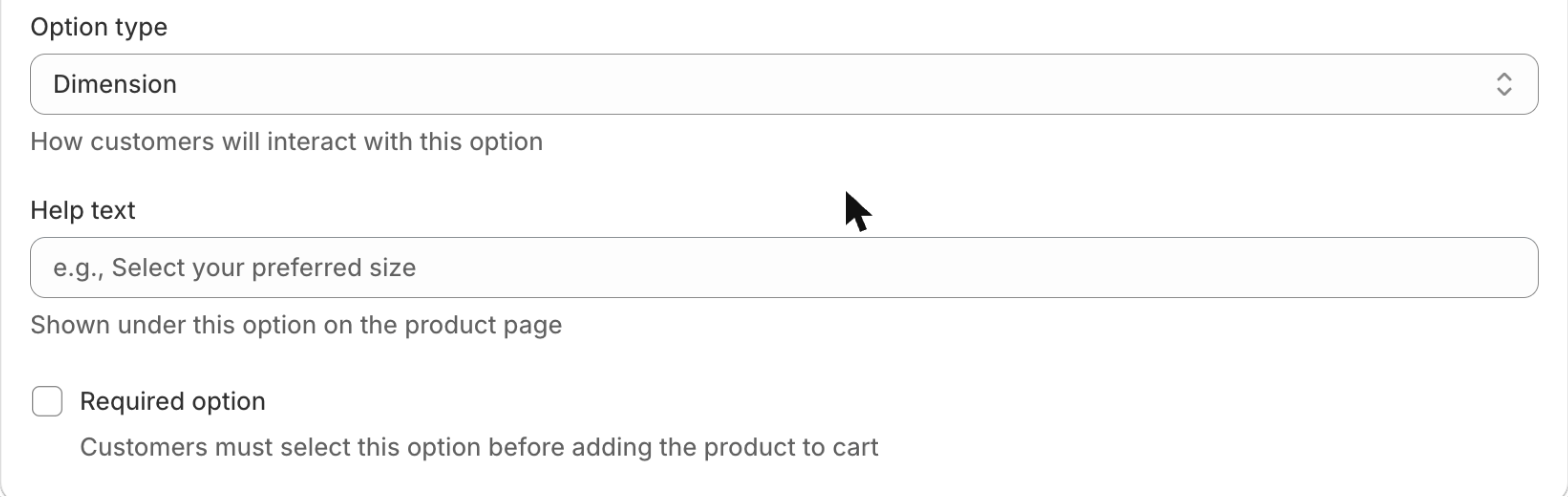 Setting the per-area unit price for the Dimension option in the Option Set Editor
Options only appear on the storefront once the theme app embed is enabled in your theme editor. If the width and height fields don't show after saving, that's usually why — the troubleshooting guide covers it in one step.
The calculated charge reaches checkout through a hidden companion product, so it's collected correctly and works with Buy it Now and Shop Pay, not just the standard cart. See add-on pricing for how totals reach the order.
Real use cases for dimension options
Blinds and curtains. A window-treatment store prices roller blinds per square meter of fabric — one Dimension option covers every size a customer could want.
Signage and banners. A print shop charges per square meter of printed vinyl, so a large banner automatically costs more than a small sign.
Cut-to-size glass, acrylic and mirrors. A glazier prices per square meter or square foot, and the customer's exact panel size flows straight to the workshop.
Because the width and height are saved as line item properties on the order, your production team sees the exact size to cut without emailing the customer. For products priced by a single measurement rather than an area, use the Range slider to sell by length; for the full workflow, see the made-to-measure guide.
FAQ
What is a dimension option in Shopify? A dimension option adds width and height inputs. The customer enters both, Optionify multiplies them into an area, then multiplies the area by your unit price — giving live area-based pricing on the product page with no variants.
How do I price a Shopify product by width and height? Use Optionify's Dimension option and set a unit price per m² or ft². The customer types a width and height, Optionify calculates the area and multiplies by your unit price, and the charge updates live before add to cart.
How does area-based pricing work? The charge equals unit price × area, where area is width × height. So 1.2 m × 1.5 m at $45 per square meter adds $81.00, calculated automatically the moment the customer enters their size.
Does a dimension option create Shopify variants? No. It isn't a variant, so it never creates SKUs or counts against the 3-options-per-product limit. It replaces thousands of pre-built size variants that still couldn't cover every dimension.
Do the measurements show on the order? Yes. The width and height are saved as line item properties on the order, so your production team sees the exact size to cut, along with the calculated charge.
Get started with Optionify
Ready to price by size automatically? Install Optionify — it's free, forever, with all 17 option types, conditional logic, and area-based pricing included.
Install Optionify on the Shopify App Store
New here? Start with creating your first product option, read the full made-to-measure guide, or use the range slider to sell by a single length instead of area.